Fixing Album Art in Windows 8 Media Player

Fixing Album Art Image in Windows 8 Media Player


Almost each and everyone out there in the World is familiar with Album Art when it comes listening to music.  For the ones who dont know it, it is a small picture shown when we play a soundtrack on a player that supports Album Arts.


Images are Copyrighted to Their Respective Owners

On Windows 8 systems and Windows 7, we notice sometimes we are seeing same Album Art for each and every track we play in a specific folder or a common folder for all soundtracks.  This is a common problem in Windows 8 default Windows Media Player but very annoying if you love Album Art and want to keep it up to date with the soundtracks you play.


To Fix this issue, follow these steps below:


1. Exit Windows Media Player.
2. Open Run Command Prompt by pressing (Window Key + R).
3. Type exactly in bold or copy-paste into Run prompt and press Enter key,
%LOCALAPPDATA%Microsoft
4. Find and Delete Media Player folder.

5. Restart Windows Media Player.
Note: Windows Media Player automatically rebuilds the database.

Hope this helps.

Do comment and enjoy...
Read More..

Fixing MSI errors in Windows 8

Fixing MSI install errors in Windows 8


As you know all, MSI is a well-known platform for deploying application packages and application updates.  It is available in both command-line interface and in GUI (Graphical User Interface) as well.

In the latest release of Microsofts Operating System Windows 8, there are a huge number of system modifications utilized by Microsoft for security and stability of its new operating system.  Due to which, installing MSI packages which unfortunately does not have appropriate signatures or if they are originated from unknown sources can become troublesome to install.

If you are getting errors and could not install MSI packages on your new Windows 8 OS, then you should follow these steps to do a proper installation.

1. Do make sure your MSI package is completely downloaded, if downloaded, verify size and hashes from where it is available for download.

2. Use elevated command-line interface to install MSI packages.  That will provide Administrative privilege to your MSI installation and will complete successfully without any problem.


Use Command-line commands to install:

Open elevated command-line by pressing Windows + X key and choosing Command Prompt (Admin).

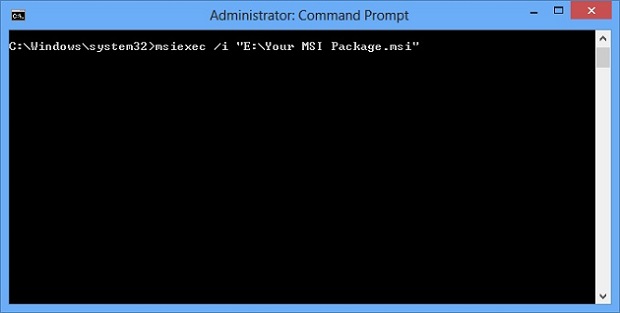
If you are not familiar with command-line tool, a simple black window will popup like in below image.

Simply enter the exact command shown in the image below and hit ENTER and follow simple GUI instructions.


Where "E:Your MSI Package.msi" will be the location of your MSI package.  Do not remove quotes.


If you want to uninstall MSI package and you are not able to uninstall it.  You can follow the same process above and just replace msiexec /i to msiexec /x to remove the package. Do not forget to open elevated command prompt.


Comment below if you are still getting problems...


Enjoy...
Read More..
Powered by Blogger.