Using In built Modem for Huawei Dongles in Windows 8

Using In-Built Modem Dialer for Huawei Dongles in Windows 8


As you all are aware that by using Huawei or any other companys 3G dongle, we can surf the web at high speeds on-the-go.  There are lots and lots of 3G dongle models are available in market that will suit your need.  Previously, we used to buy a carrier-locked 3G dongle that will not accept any other Operators SIM card for use.

But now, Huawei itself has launched its own range of dongles that are factory unlocked and ready to be used with every Operators network.  Just insert the SIM, and start enjoying High-Speed 3G Internet on-the-go depending on the availability of Network in your locale.

But what if you dont want to mess up with your Operating system by installing extra software eating up your system resources.

In this post, you will see how we can use in-built modem dialer of Windows 8 to get connectivity with Huawei Dongles.

You need only to download and install latest Huawei Dongle drivers and you are ready to surf the web without any headache.  If you have already installed Mobile Partner, then you dont need to download anything else.

Windows 8 offers in-built Modem Dialer for Mobile Broadband so that you can surf the web in seconds without having trouble.

After installing Drivers, just restart the system and you are ready to surf the Internet via Dongle.


Steps to use In-built modem:
  • Plug-in your Huawei Dongle on your Windows 8 Machine.
  • Click on Network Icon on your Windows 8 taskbar.
  • Find your Dongle under Mobile Broadband and click Connect.
  • Enter APN (Access Point Name) and you are ready to surf the Internet.
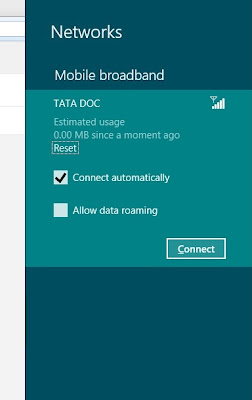


By this method, you can only connect to Internet.  Unfortunately, You CANNOT check Balance or make calls from this method.  You need to install Mobile Partner Dashboard to accomplish those services.  You can get latest version of Mobile Partner here.

Steps to install:


Extract ZIP and open DriverSetup.  Open as Admin by right clicking.  After Install restart machine. 

Download Details:
File Name:  Huawei Drivers.zip
Version: 4.25.06.00
Size:  6 MB

Download link:
http://www.mediafire.com/?fht0ofdbf7o5e3f

Pass:  computerworldblog


Enjoy...
Comments welcome...
Read More..

windows 8 become RTM


RTM version (release to manufacturing) of Windows 8 is ready . With other words , Windows 8 development ended and Microsoft will begin  to se
nd it the integrators . Also on this occasion Microsoft will  do windows 8 available for programmers , testing and development . Starting of 15 august windows 8 will be downloaded from TechNet and MSDN ,obvious of those who have access .

http://blog-de-filme-online.blogspot.COM/
Read More..

Fixing Album Art in Windows 8 Media Player

Fixing Album Art Image in Windows 8 Media Player


Almost each and everyone out there in the World is familiar with Album Art when it comes listening to music.  For the ones who dont know it, it is a small picture shown when we play a soundtrack on a player that supports Album Arts.


Images are Copyrighted to Their Respective Owners

On Windows 8 systems and Windows 7, we notice sometimes we are seeing same Album Art for each and every track we play in a specific folder or a common folder for all soundtracks.  This is a common problem in Windows 8 default Windows Media Player but very annoying if you love Album Art and want to keep it up to date with the soundtracks you play.


To Fix this issue, follow these steps below:


1. Exit Windows Media Player.
2. Open Run Command Prompt by pressing (Window Key + R).
3. Type exactly in bold or copy-paste into Run prompt and press Enter key,
%LOCALAPPDATA%Microsoft
4. Find and Delete Media Player folder.

5. Restart Windows Media Player.
Note: Windows Media Player automatically rebuilds the database.

Hope this helps.

Do comment and enjoy...
Read More..

Preventing Bing Page Popping on Windows 8

Preventing Bing page popping up every time you connect Internet on Windows 8 


As Microsofts new Operating System started rolling out, everyone out there wanted a copy of it as soon as possible.  For that regard, Microsoft did very well delivering its new product via its various channels, most popular of it being Online purchase download option.

With its new operating system hitting most number of computers to date, people started having some strange issues that they never had with their old operating systems.

One of the troublesome issue with Windows 8 is that whenever you get connected to internet on Windows 8, sometimes a Internet Explorer or your default browser launches automatically with Microsofts Bing page.  Some people find it useful as they dont need to launch their browsers automatically, but few are getting this annoying as if your Internet interrupts for a minute and then restores back, the popup comes up again giving you a headache.


The link which it opens:

http://go.microsoft.com/fwlink/?LinkID=219472&clcid=0x409

Which redirects to Bing.com

In the post, we will be following a simple method of fixing this issue.  With a simple registry entry modification, we can overcome this problem.

Heres how to fix it:

Open Registry Editor by opening Run Command by pressing Window + R key and type regedit.

From left folder view panel, navigate to the following registry key shown in below image.


Right click EnableActiveProb.. and click Modify...

In Edit Box, just make sure your Value data: contains 0, not 1.  If it is 1, change it to 0, click Ok and Restart your computer.

You will not get that Bing start page every time you will connect to your Internet on Windows 8.


Enjoy..
Comments welcome...
Read More..

Fixing MSI errors in Windows 8

Fixing MSI install errors in Windows 8


As you know all, MSI is a well-known platform for deploying application packages and application updates.  It is available in both command-line interface and in GUI (Graphical User Interface) as well.

In the latest release of Microsofts Operating System Windows 8, there are a huge number of system modifications utilized by Microsoft for security and stability of its new operating system.  Due to which, installing MSI packages which unfortunately does not have appropriate signatures or if they are originated from unknown sources can become troublesome to install.

If you are getting errors and could not install MSI packages on your new Windows 8 OS, then you should follow these steps to do a proper installation.

1. Do make sure your MSI package is completely downloaded, if downloaded, verify size and hashes from where it is available for download.

2. Use elevated command-line interface to install MSI packages.  That will provide Administrative privilege to your MSI installation and will complete successfully without any problem.


Use Command-line commands to install:

Open elevated command-line by pressing Windows + X key and choosing Command Prompt (Admin).

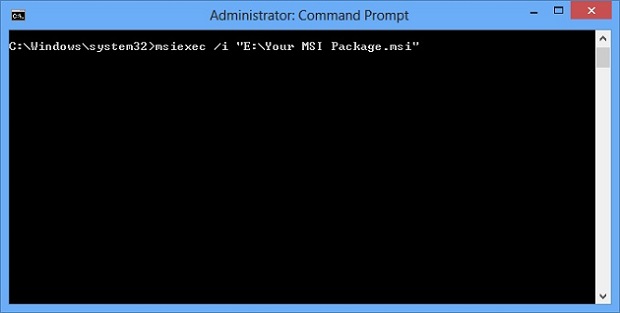
If you are not familiar with command-line tool, a simple black window will popup like in below image.

Simply enter the exact command shown in the image below and hit ENTER and follow simple GUI instructions.


Where "E:Your MSI Package.msi" will be the location of your MSI package.  Do not remove quotes.


If you want to uninstall MSI package and you are not able to uninstall it.  You can follow the same process above and just replace msiexec /i to msiexec /x to remove the package. Do not forget to open elevated command prompt.


Comment below if you are still getting problems...


Enjoy...
Read More..

Windows vocabulary vocab word search keying practice

DO NOT CHANGE THE BACKGROUNDS ON THE COMPUTER!!  This actually is a violation of the computer lab policy and should not be attempted.

I want to start today by discussing a few things regarding this weeks vocabulary list - Operating System, Windows, Tool bar, and Menu bar.

After explaining those to you I am going to give you time in class today to search for definitions for your vocabulary words.  After today there shouldnt be anyone who doesnt have a definition posted when it is time for their words to be posted on the Wikispaces page.  Youre not going to be able to post your definitions in class today but you will have your definitions.

Once this is complete we will head back to the practice websites for more practice.


Read More..

Remove Unused Windows 8 Network Connection Entries

Rename Windows 8 Network Connections and Remove Unused Connection Entries


All of a sudden, we see some strange things in our life.  Here we are talking about Microsofts new operating system Windows 8.

In this post, we are discussing and resolving issues related to Network naming in Windows 8.  Since the roll out of Windows 8, people are switching to it as soon as they can.

When we reset our modem or install Mobile Partner devices, we see the network name changes to Network 2, Network 3, and so on..

Sometimes, this becomes annoying for users and they want it to be changed to default name "Network"

With Windows 8, the option for deleting, merging, and renaming Network connection entries have removed and users are finding trouble renaming or deleting unsed Network entries.

For this you just need to locate a registry entry and you can change name or delete unused connection entries.  Just follow few simple steps below.


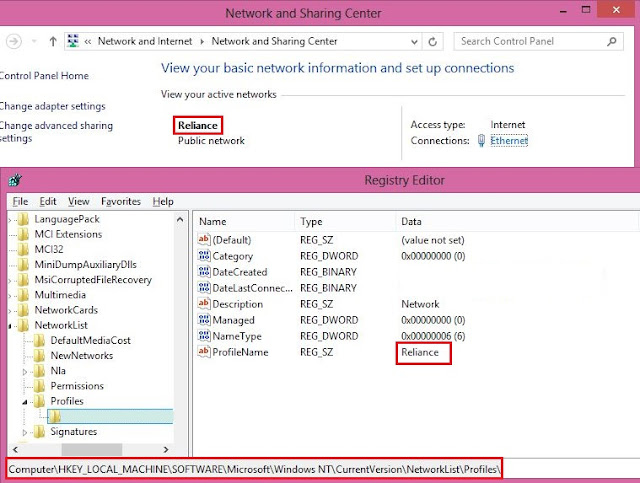
1.  Open Registry Editor by typing Regedit in Run prompt (Windows key + R key).
2.  Locate to registry entry displayed in the image below.

HKEY_LOCAL_MACHINESOFTWAREMicrosoftWindowsNTCurrent VersionNetworkListProfiles

3.  There you will find all network profiles and you can change or delete them as per your requirements.


4.  Just right click ProfileName and click Modify.


You are done.

Enjoy...
Comments Welcome..
Read More..

Mobile Partner Dashboard for Windows 8

Huawei Mobile Partner Dashboard


Mobile Partner by Huawei


FULLY SUPPORTED WITH WINDOWS 8


Mobile Partner is a dashboard software available for Huawei Internet Dongles created by Huawei Technologies.  Here you will find latest version of Mobile Partner with almost every operators Internet setting built in.


Almost everywhere on Internet, there are lots of Mobile Partner Dashboards available for download, but unfortunately none of them will work with Microsofts latest Operating System Windows 8 because of their driver incompatibility.

In this post you will find Mobile Partner latest version, which is fully supported and compatible with Windows 8, 100% tested working.


This is a 100% clean download and company-provided Dashboard and it is not modified in any state.

Screens:


Images and Logos are copyrighted to their respective owners.  Do not copy/reuse without permission.


With its Easy-To-Use One Click CONNECT button, you can get yourself connected within few seconds.  Enjoy High-Speed Internet On-The-Go with this new Dashboard.  Almost all network profiles are integrated by default from Huawei in this dashboard.


Download Details:

File Name:  Mobile Partner.zip
Supported OS:  XP/Windows 7/Windows 8
File Size:  25.5 MB
Version:  23.009.09.02.910
Date Updated:  20 July 2013

Download Link:
Click To Download

Enjoy...
Read More..

Windows vocab words Learn Q and comma

At the beginning of class today we are going to discuss a few of the vocab words.  Some of these are easily confused so I want to make sure that we understand the differences between them before Fridays quiz.  We will talk about the following:  toolbar, menu bar, drop-down menu, keyboard shortcut, scroll bar, and function keys.

Additionally we will be learning the Q (L4) and the comma (R2).
Read More..

how to recover your windows password

buddy i am going to show you how to recover your windows password.

1st step=connect a pendrive/memory card on computer.

2nd step=follow my image instruction


                                                   go to my computer
                                               

                             click on open control panel
                                                 

                                                           clck on user account

                                       click on crate a password reset disk

                                           here is put your current password
                                                       

wait until finished progres


click finish
 
how to use this tricks and break windows password

 1st step= restart your computer

2nd step= for test put a wrong password

3rd step=connect your memory card or pendrive where you install recovery file

4th step= put you wrong password  and enter.windows says wrong password ..and you can see reset password option.


5th step=after clickin reset option if you are connect your memory card/pendrive then open a new window.

6th step=click next and enter a new password then finish


  if you can understand then you can watch this video

Read More..

Remove Windows shutdown button Hacking Tricks

Remove shutdown buttons your friend pc
Hacking tricks
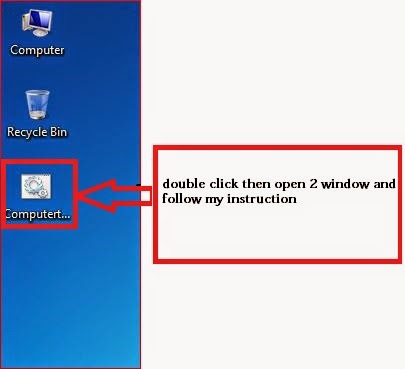
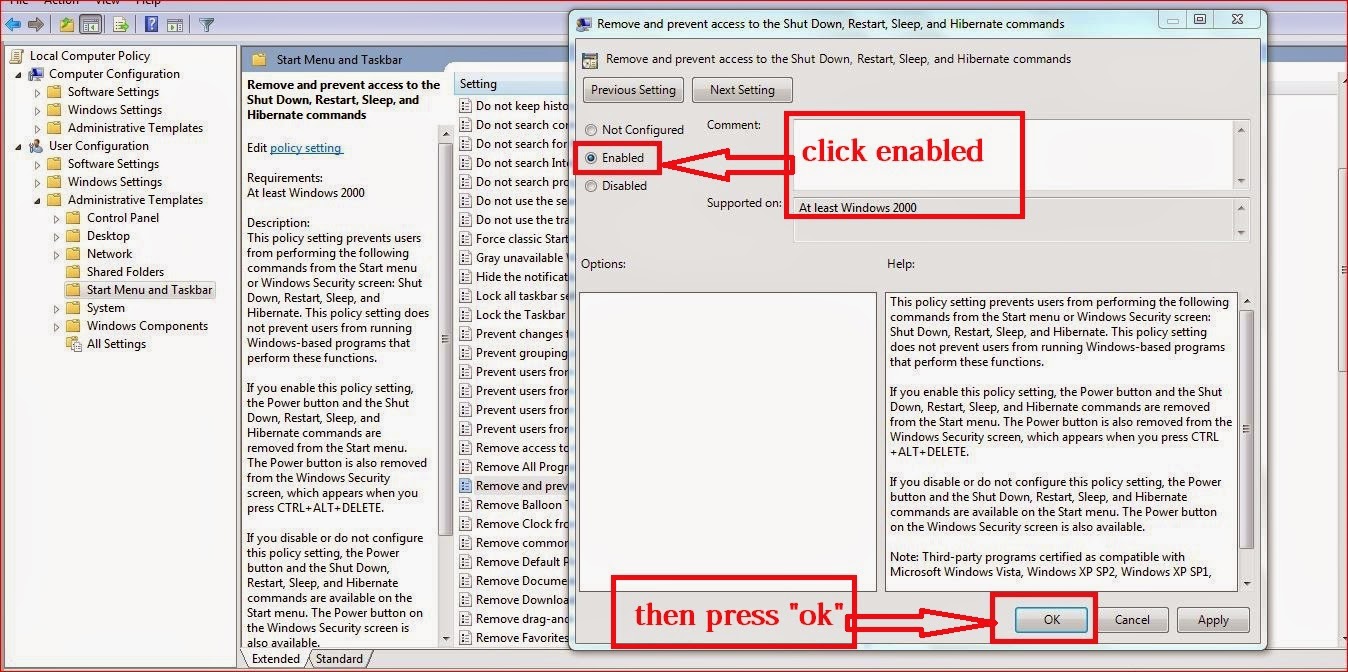
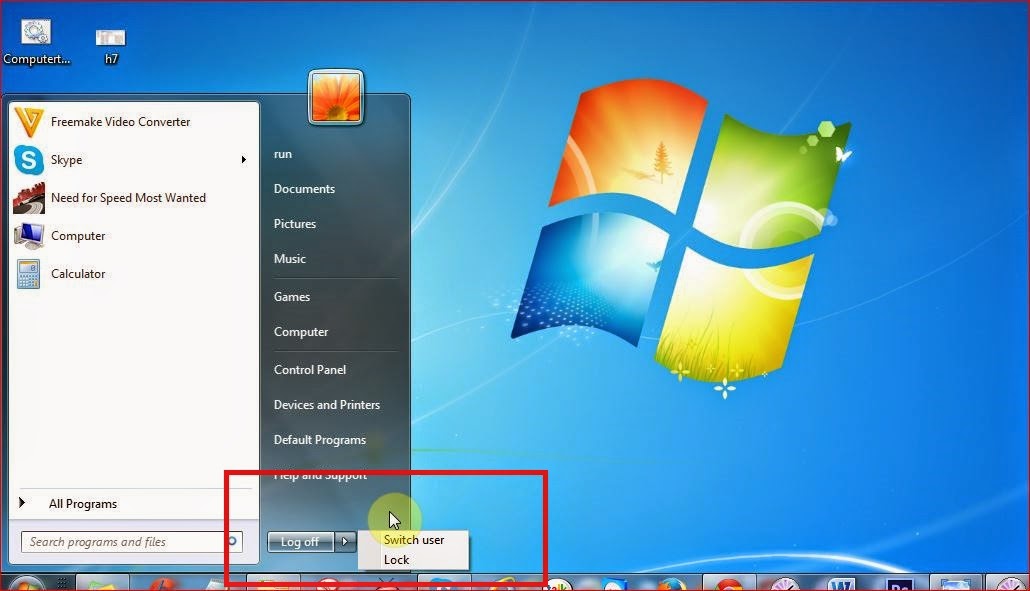
How to remove shutdown button from your friends computer. If your friends have windows 7 operating system then you are applying this tricks. So, follow my image instruction...

4 

click here and download this file


#Follow my image instruction:
3


2

#OK Done now check your shutdown button..........
1

Read More..

How to Create delete a Hard Disk Partition in Windows 7

How to Create/delete a Hard Disk Partition in Windows 7


Hello Everyone, this is only a video tutorial. so, if you facing any problems after watching this video then comment here. And we will try to solve this problems.


Read More..

Without knowing change your friends windows password hacking tricks for windows 7

passw


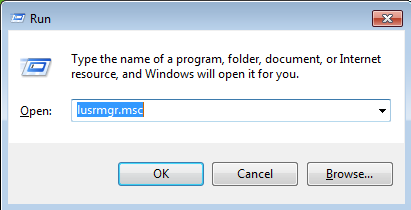
1st step: go to run then type this code lusrmgr.msc and then enter.
computer tricks


2nd step: open a new window then click users folder 


3rd step: The you can see your windows username 


4th step: follow my image instruction


Read More..

Windows 7 Hidden Theme

Computer Tips
 computer theme

windows 7- as soon as the user knows that windows 7- This is the default theme that already.Under the theme of Windows 7 - the custom wallpaper, sounds, icons, task-bar, etc. are arranged. A certain number of the theme you want to use any of the themes that are downloaded from the Internet. But you know your being aware of the location of the five theme categories are concealing your Windows PC! Yes, absolutely the truth. Now just a little  pain in my Windows 7 PC in 5minutes time. From the start  in the search bar: Windows Globalization MCT write.Now press  Enter. Then open a new window.“ll see five folders in a new window.Now that MCT-AU folder into the folder Theme - waited in AU. Theme-click Windows 7 - The theme will be installed in Australia. Similarly, one by one, MCT-CA, MCT-GB, MCT-US, MCT
-ZA folders respectively entered into the Theme folder CA. theme, GB. Theme, US. Theme and ZA.Theme folders click will install the remaining four themes on your PC. This theme is the theme of four in Canada, the United Kingdom, the United States and South Africa.
 
Read More..

Mega Tutorial For Windows keyboard shortcuts

Mega Tutorial For Windows keyboard shortcuts


Alt + F File menu options in current program.
Alt + E Edit options in current program
Alt + Tab Switch between open programs
F1 Universal Help in almost every Windows program.
F2 Rename a selected file
F5 Refresh the current program window
Ctrl + N Create a new, blank document in some software programs
Ctrl + O Open a file in current software program
Ctrl + A Select all text.
Ctrl + B Change selected text to be Bold
Ctrl + I Change selected text to be in Italics
Ctrl + U Change selected text to be Underlined
Ctrl + F Open find window for current document or window.
Ctrl + S Save current document file.
Ctrl + X Cut selected item.
Shift + Del Cut selected item.
Ctrl + C Copy selected item.
Ctrl + Ins Copy selected item
Ctrl + V Paste
Shift + Ins Paste
Ctrl + K Insert hyperlink for selected text
Ctrl + P Print the current page or document.
Home Goes to beginning of current line.
Ctrl + Home Goes to beginning of document.
End Goes to end of current line.
Ctrl + End Goes to end of document.
Shift + Home Highlights from current position to beginning of line.
Shift + End Highlights from current position to end of line.
Ctrl + Left arrow Moves one word to the left at a time.
Ctrl + Right arrow Moves one word to the right at a time.
Ctrl + Esc Opens the START menu
Ctrl + Shift + Esc Opens Windows Task Manager
Alt + F4 Close the currently active program
Alt + Enter Open the Properties for the selected item (file, folder, shortcut, etc.)
Read More..

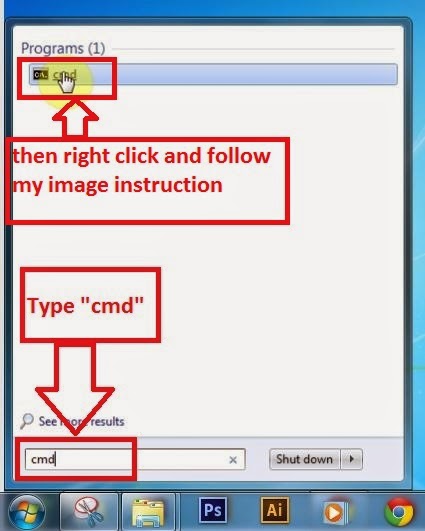
Make Your Windows 7 Genuine by Command Prompt Computer Tips

Make Your Windows 7 Genuine by Command Prompt: Computer Tips


Today i am going to share with you very important computer tips how to make your windows 7 genuine by command prompt. So, follow my image instruction ...Lets Go............

# 1st step: Go to start menu and type cmd and right click on the cmd icon

Windows 7 Genuine1


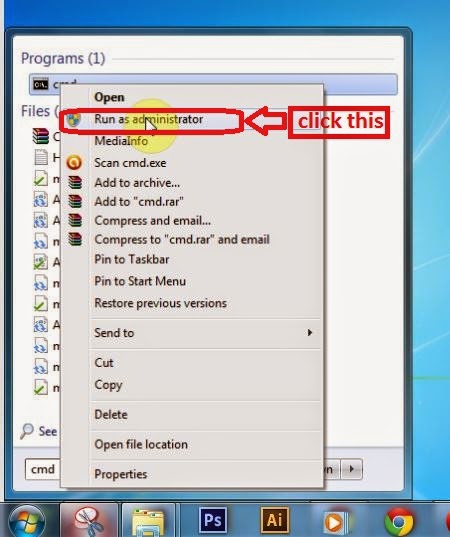
# Step 2: then click in "Run as administrator" then press ok
 Windows 7 Genuine2


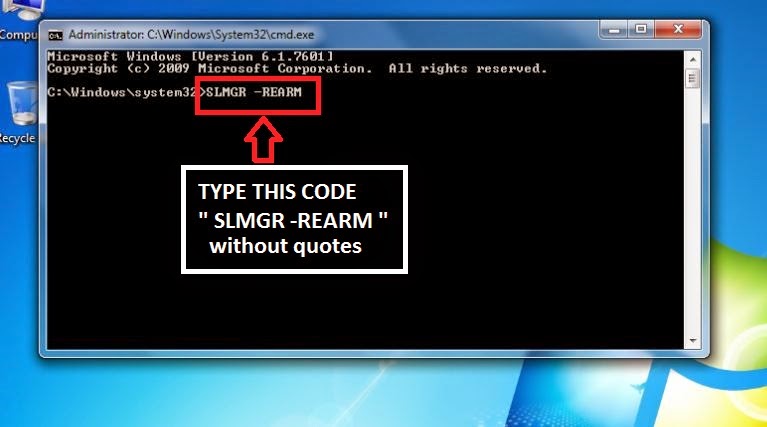
# Step 3: Type this command " SLMGR -REARM " then press ok

 Windows 7 Genuine3

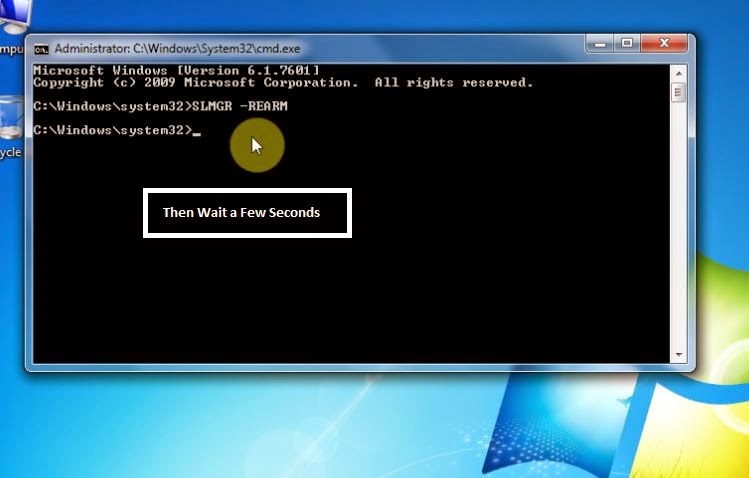
# Step 4:  Wait a seconds
 Windows 7 Genuine4


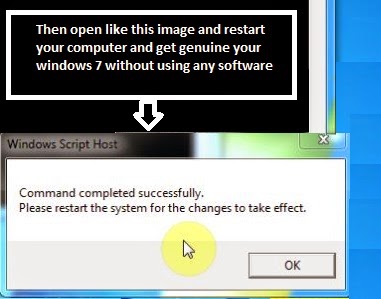
# Step 5: then successfully complete this task and restart your computer and get your windows genuine,
 Windows 7 Genuine5


Read More..

Windows 7 keyboard shortcuts


Top keyboard keys shortcuts in windows 7 .


Use the windows keyboard shortcuts to make your windows experience batter then other windows users.


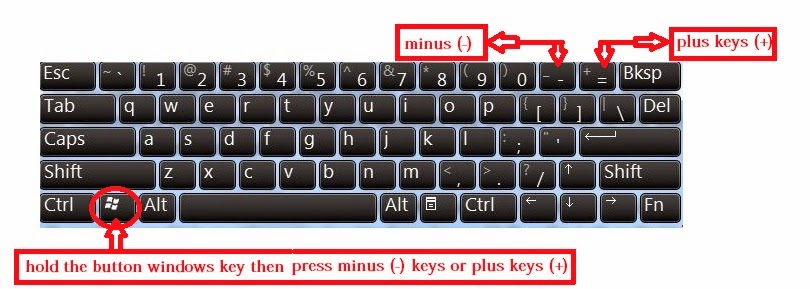
# COMMAND: Windows key - plus and minus keys.

You can zoom in and zoom out using this key. Follow my image instruction.
Windows key - plus and minus keys.


# COMMAND: Ctrl + P

pressing Ctrl + P then will open print preview of your current page.


# COMMAND: F2

If you want to rename your file then select the file and press F2 then you can able to rename this file.

# COMMAND: Windows key - press button "tab" then you can see  your all openning folders.
2

# COMMAND: Ctrl + S

If you want to quick save your file then you need to  pressing Ctrl+ S.


# COMMAND: Ctrl + z 
When you are working in your documents suddenly you make a big mistake but if you are using Ctrl + z then you can restore your work.

# COMMAND: Ctrl + C & Ctrl + V 

Ctrl + C that means copy if you want to copy anything from your dextop then
select the file or folders or articles then pressing Ctrl + C.

After copying file,folders or articles then you need to paste your target location then pressing Ctrl + V.


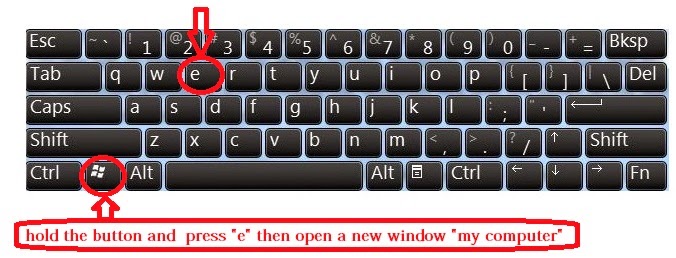
# COMMAND: Windows key - press button "E" = open your my computer 


1


Read More..

How to create password for your Windows XP computer

How to create password for your Windows XP computer

Introduction

If you are afraid your privacy data from your computer read by unwanted person when you are not around your computer. Create the password before computer log in is the best solution for this problem. Your computer cannot be access without knowing your secret password.

Requirement

You must be logged on as an “administrator” or a member of the Administrators group on a computer that is part of a network domain in order to complete this procedure.

Steps

Step one

Click “start” and then click “Control Panel”.

Step Two

Search for “user account” and then click. You’ll obtain “pick a task” and or “pick an account to change” . Click to “Computer administrator”.

Step Three

Choose “create password” after this you’ll need to create a password, retype a password and password hint.

Step four

Restart your computer and you’ll see, your computer will request for password before log in……..

Read More..
Powered by Blogger.