Navigation Shortcuts for MS Word The Keyboard

Picture this: Youre working on the ultimate document. I mean, its a masterpiece! Too bad the masterpiece is also a nightmare though. Its easily the longest document youve ever edited and the navigation through all those pages is just a huge headache. (Not to mention the back and forth, back and forth between the keyboard and the mouse). I bet youre looking for some help, huh?!

Well, never fear. Im here to save the day! While these shortcuts wont make your document shorter, they will help to ease the pain as you try to navigate through your work and hopefully, without the need for aspirin.

Today, lets begin with some basic keyboard shortcuts:

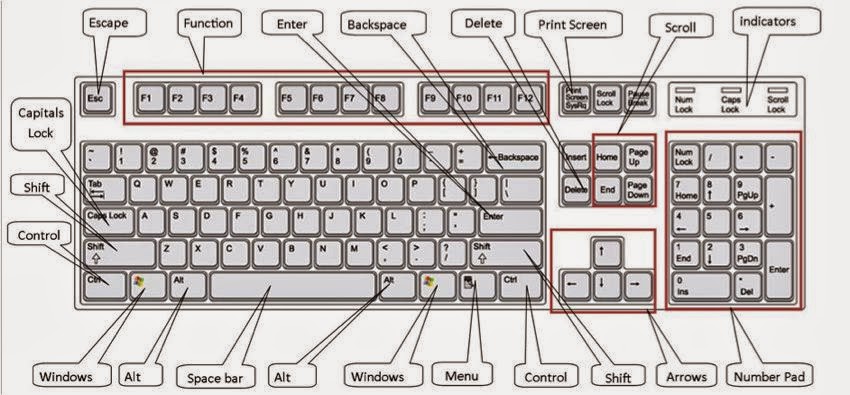
  • Arrow keys = moves one space or line in the arrow direction.

  • Ctrl + Left or Right arrow = moves the cursor one word left or right.

  • Home = moves the cursor to the beginning of the current line.

  • Ctrl + Home = moves the cursor to the top of the document.

  • End = moves the cursor to the end of the current line.

  • Ctrl + End = moves the cursor to the bottom of the document.

  • Page Up = moves the cursor up the length of one screen.

  • Page Down = moves the cursor down the length of one screen.

  • Ctrl + Page Up = moves the cursor to the previous page in your document.

  • Ctrl + Page Down = moves the cursor to the next page down in your document.

If youre mouse dependent, give these a try. Im sure youll find them to be a great aid in your quest to be even more efficient!


Read More..

Mega Tutorial For Windows keyboard shortcuts

Mega Tutorial For Windows keyboard shortcuts


Alt + F File menu options in current program.
Alt + E Edit options in current program
Alt + Tab Switch between open programs
F1 Universal Help in almost every Windows program.
F2 Rename a selected file
F5 Refresh the current program window
Ctrl + N Create a new, blank document in some software programs
Ctrl + O Open a file in current software program
Ctrl + A Select all text.
Ctrl + B Change selected text to be Bold
Ctrl + I Change selected text to be in Italics
Ctrl + U Change selected text to be Underlined
Ctrl + F Open find window for current document or window.
Ctrl + S Save current document file.
Ctrl + X Cut selected item.
Shift + Del Cut selected item.
Ctrl + C Copy selected item.
Ctrl + Ins Copy selected item
Ctrl + V Paste
Shift + Ins Paste
Ctrl + K Insert hyperlink for selected text
Ctrl + P Print the current page or document.
Home Goes to beginning of current line.
Ctrl + Home Goes to beginning of document.
End Goes to end of current line.
Ctrl + End Goes to end of document.
Shift + Home Highlights from current position to beginning of line.
Shift + End Highlights from current position to end of line.
Ctrl + Left arrow Moves one word to the left at a time.
Ctrl + Right arrow Moves one word to the right at a time.
Ctrl + Esc Opens the START menu
Ctrl + Shift + Esc Opens Windows Task Manager
Alt + F4 Close the currently active program
Alt + Enter Open the Properties for the selected item (file, folder, shortcut, etc.)
Read More..

Windows 7 keyboard shortcuts


Top keyboard keys shortcuts in windows 7 .


Use the windows keyboard shortcuts to make your windows experience batter then other windows users.


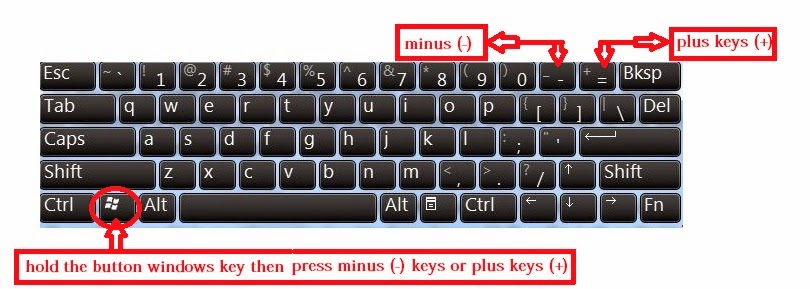
# COMMAND: Windows key - plus and minus keys.

You can zoom in and zoom out using this key. Follow my image instruction.
Windows key - plus and minus keys.


# COMMAND: Ctrl + P

pressing Ctrl + P then will open print preview of your current page.


# COMMAND: F2

If you want to rename your file then select the file and press F2 then you can able to rename this file.

# COMMAND: Windows key - press button "tab" then you can see  your all openning folders.
2

# COMMAND: Ctrl + S

If you want to quick save your file then you need to  pressing Ctrl+ S.


# COMMAND: Ctrl + z 
When you are working in your documents suddenly you make a big mistake but if you are using Ctrl + z then you can restore your work.

# COMMAND: Ctrl + C & Ctrl + V 

Ctrl + C that means copy if you want to copy anything from your dextop then
select the file or folders or articles then pressing Ctrl + C.

After copying file,folders or articles then you need to paste your target location then pressing Ctrl + V.


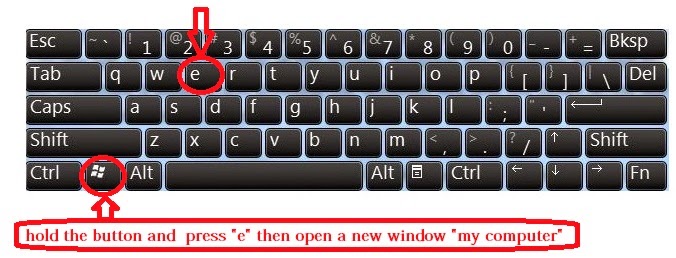
# COMMAND: Windows key - press button "E" = open your my computer 


1


Read More..
Powered by Blogger.