
By: Aylani

Crossword puzzle due learn 3 6 and 2
You need to turn in your crossword puzzle at the beginning of the hour. Please make sure your name is on your paper.
We will review the numbers that we have learned so far, then we will learn the last 3 numbers - the 3 (L2), the 6 (R1), and the 2 (L3).
This is the end of the 3rd quarter - believe it or not we are 75% of the way through the school year!!
Read More..
We will review the numbers that we have learned so far, then we will learn the last 3 numbers - the 3 (L2), the 6 (R1), and the 2 (L3).
This is the end of the 3rd quarter - believe it or not we are 75% of the way through the school year!!

Note 2 Galaxy officially confirmed

, according to Reuters . New version of the the largest smartphone the world will be launched on 29 august , before IFA Berlin.
http://blog-de-filme-online.blogspot.ro/
Vocab quiz 2 Learn M and X
Today we have our second vocab quiz. Just like last week we will take the first few minutes to review and then we will be heading to Classmarker to complete the quiz. DO NOT GO TO CLASSMARKER UNTIL I GIVE YOU THE OK!
After completing the quiz we will be learning the M (R1) and the X (L3).
Read More..
After completing the quiz we will be learning the M (R1) and the X (L3).
MOBILE COMPUTING 2 MARKS WITH ANSWERS
guys i have uploaded mobile computing frequently asked 2-marks with anwers........
file size:720 Kb
click here to download
file size:720 Kb
click here to download


Internet Safety 2 days left! Alice programming introduction
There are 2 days left to work on (in class) your Internet Safety project. Tomorrow is the last day you will be allowed to work on it and it should be done by the end of the hour.
If you are done you are going to begin working on Alice - an Educational software program that teaches you computer programming in a 3D environment. To use Alice, go to Finder on your computer. Next, double click on the Alice folder. Then, double click on the icon labeled Alice - you will need to agree to any user agreements.
Once you have opened Alice come back here and go to the following video and watch an introduction on how you will interact with the Alice interface.
Alice introductory video
Once you have watched that video you will begin working in Alice with Oracle Academy. You will work through a series of Lessons that will help you to better understand how Alice works and how to manipulate the Alice programming environment. Here is where you need to go:
Oracle Academy
Once at that website, click on "Get Started with Alice 3" under the red rectangle on the left side of the page (the red rectangle says "Self Study: Getting started with Java using Alice"). Work through each of the sections of that lesson - if you complete all of the sections move to the next lesson ("Add and Position Objects"); if you complete the different sections of that lesson move on the next lesson, and so on.
We will be using Alice often in the last quarter - you will be getting a head start on learning the software.
Read More..
If you are done you are going to begin working on Alice - an Educational software program that teaches you computer programming in a 3D environment. To use Alice, go to Finder on your computer. Next, double click on the Alice folder. Then, double click on the icon labeled Alice - you will need to agree to any user agreements.
Once you have opened Alice come back here and go to the following video and watch an introduction on how you will interact with the Alice interface.
Alice introductory video
Once you have watched that video you will begin working in Alice with Oracle Academy. You will work through a series of Lessons that will help you to better understand how Alice works and how to manipulate the Alice programming environment. Here is where you need to go:
Oracle Academy
Once at that website, click on "Get Started with Alice 3" under the red rectangle on the left side of the page (the red rectangle says "Self Study: Getting started with Java using Alice"). Work through each of the sections of that lesson - if you complete all of the sections move to the next lesson ("Add and Position Objects"); if you complete the different sections of that lesson move on the next lesson, and so on.
We will be using Alice often in the last quarter - you will be getting a head start on learning the software.
Vocabulary introduction beginning week 2
This week:
Vocabulary
Create Wikispace accounts
Create a Classmarker account
Review of all keys learned
Learn N, G, Left Shift key, period (.)
Technique grade
TODAY:
We are going to begin by talking about the vocab words and vocab lists for the class. If you go to the vocabulary page on the blog youll see a variety of information - well be covering this today. Additionally, youll need to have access to the wikispaces page so that you can submit vocabulary definitions (thats already been done by me - you will need to verify by checking your gmail, and well do that in a little bit).
The vocabulary for this class is really split into 2 parts - on one hand you will be responsible for knowing all of the vocabulary words for any given week, and you will demonstrate your knowledge by completing a vocab quiz. On the other hand you will be required to find definitions for the vocab words and post them to the wiki for everyone to study off of. This "research process" will be graded, just as the vocab quizzes will be graded (our first vocabulary quiz will be this Friday, and it will be taken online on a website called Classmarker).
When you post a definition to the Wiki, your definition should be easy to understand. Sometimes, after finding a definition, you will see that the definition that you have found doesnt help you to understand what that vocab word means (or is). Therefore, find definitions that are easy to understand, and if you cant find one that makes sense please see me so I can help you write an easy-to-understand definition.
Additionally, if you have a vocab word that is an acronym (GPS, WWW, or FAQ) then please include what the letters stand for (for example, WWW stands for World Wide Web, and when you enter your vocab definition on the wiki make sure to include that).
This will seem a little foreign to begin with, but we will be talking about this every day between now and the end of next week, which is when your first quiz will be.
You could set up a calendar reminder in Google so that you receive an email - this way you will be reminded several days in advance of when you need to have a definition posted on the wiki. And, since you already know the words that you will be asked to define, you could find a definition for each of your words and save those definitions in a Google Doc - then when it is your week all you have to do is copy from your Google Doc to the Wiki.
Read More..
Vocabulary
Create Wikispace accounts
Create a Classmarker account
Review of all keys learned
Learn N, G, Left Shift key, period (.)
Technique grade
TODAY:
We are going to begin by talking about the vocab words and vocab lists for the class. If you go to the vocabulary page on the blog youll see a variety of information - well be covering this today. Additionally, youll need to have access to the wikispaces page so that you can submit vocabulary definitions (thats already been done by me - you will need to verify by checking your gmail, and well do that in a little bit).
The vocabulary for this class is really split into 2 parts - on one hand you will be responsible for knowing all of the vocabulary words for any given week, and you will demonstrate your knowledge by completing a vocab quiz. On the other hand you will be required to find definitions for the vocab words and post them to the wiki for everyone to study off of. This "research process" will be graded, just as the vocab quizzes will be graded (our first vocabulary quiz will be this Friday, and it will be taken online on a website called Classmarker).
When you post a definition to the Wiki, your definition should be easy to understand. Sometimes, after finding a definition, you will see that the definition that you have found doesnt help you to understand what that vocab word means (or is). Therefore, find definitions that are easy to understand, and if you cant find one that makes sense please see me so I can help you write an easy-to-understand definition.
Additionally, if you have a vocab word that is an acronym (GPS, WWW, or FAQ) then please include what the letters stand for (for example, WWW stands for World Wide Web, and when you enter your vocab definition on the wiki make sure to include that).
This will seem a little foreign to begin with, but we will be talking about this every day between now and the end of next week, which is when your first quiz will be.
You could set up a calendar reminder in Google so that you receive an email - this way you will be reminded several days in advance of when you need to have a definition posted on the wiki. And, since you already know the words that you will be asked to define, you could find a definition for each of your words and save those definitions in a Google Doc - then when it is your week all you have to do is copy from your Google Doc to the Wiki.
Vocab Quiz 2 Hardware 2 Formatting Activity 1
Youll be given a few minutes at the beginning of class to review for the quiz - youll want to go to your Wikispaces page to do that. Do NOT go to Classmarker until asked to do so. As a reminder, make sure to submit your quiz answers - failure to do so will mean that you will have to come back and retake the quiz.
When you are done you will need to complete Formatting Activity 1, which is embedded below. The instructions are given here - follow the instructions in order. However, instead of completing steps 7 and 8 what you need to do is save your file to a flash drive. We will cover how to complete step 8 on Monday. IF YOU DO NOT SAVE YOUR DOCUMENT TO YOUR FLASH DRIVE IT WILL BE ERASED AND YOU WILL HAVE TO START OVER NEXT WEEK!!!
FA1.pdf
If you get done you are welcome to go to the website resources page on the blog, go to the practice websites and play typing games.
Read More..
When you are done you will need to complete Formatting Activity 1, which is embedded below. The instructions are given here - follow the instructions in order. However, instead of completing steps 7 and 8 what you need to do is save your file to a flash drive. We will cover how to complete step 8 on Monday. IF YOU DO NOT SAVE YOUR DOCUMENT TO YOUR FLASH DRIVE IT WILL BE ERASED AND YOU WILL HAVE TO START OVER NEXT WEEK!!!
FA1.pdf
If you get done you are welcome to go to the website resources page on the blog, go to the practice websites and play typing games.
Copy vs Cut and paste Extension Learn 5 7 3 6 and 2
COPY AND PASTE VS. CUT AND PASTE
EXTENSION
Numbers:
5 - L1 (reach from F to 5)
7 - R1 (reach from J to 7)
3 - L2 (reach from D to 3)
6 - R1 (reach from J to 6 - the longest reach on the keyboard!)
2 - L3 (reach from S to 2)
To warmup we will start with typing on page 31, 14A, lines 1-3 once.
P. 31, 14B, lines 1-4 twice
P. 32, 14C, lines 1-6 once
P. 32, 14D, lines 1-8 twice
Read More..
EXTENSION
Numbers:
5 - L1 (reach from F to 5)
7 - R1 (reach from J to 7)
3 - L2 (reach from D to 3)
6 - R1 (reach from J to 6 - the longest reach on the keyboard!)
2 - L3 (reach from S to 2)
To warmup we will start with typing on page 31, 14A, lines 1-3 once.
P. 31, 14B, lines 1-4 twice
P. 32, 14C, lines 1-6 once
P. 32, 14D, lines 1-8 twice
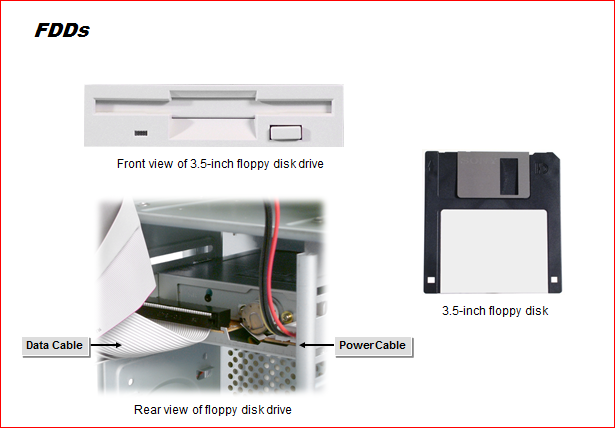
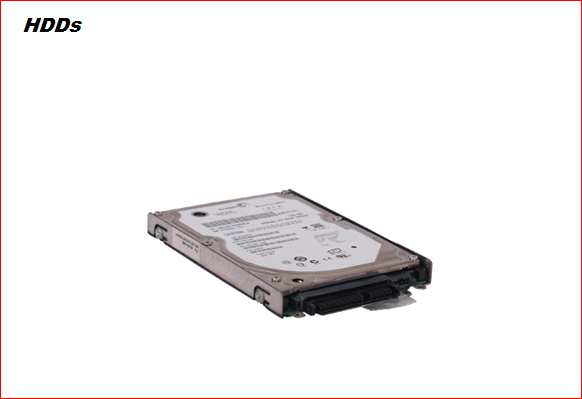
Computer Basic Hardware Tutorial part 2

Now its my second tutorial topic about Computer Basic Hardware Tutorial........Follow my image instruction....




The Case of the Separated Date Part 2 MS Word
About a month ago (on August 3, 2007 to be exact), we discussed a way to prevent a string of words from being separated onto different lines by MS Word when it wraps text. At that time, the suggestion of Shift + Enter was offered.
Read More..
Its a solution that works and if youre not going to need to edit the file much, youd probably never notice any hiccups with it. But, on the other hand, if youre using it in a file that will undergo a lot of editing, you may find some limitations with this method. You may find that editing could cause some very short lines in the middle of a paragraph if you dont go in and delete the Shift + Enter.
So, if that wasnt a solution that worked well for you, youre probably wondering about other options.
At the time, I just couldnt come up with another choice, but fortunately, a reader wrote in and added a very helpful trick to our ever growing list of ways to make Word behave.
Now, I know youre interested in the extra information too, so lets get to work!
In order to invisibly connect two words, all you need to know is Ctrl + Shift + Space.
Yep, its that easy! Instead of placing a regular space between two words, use Ctrl + Shift + Space and the program will not separate the words onto two separate lines.
The good part about this method is that when editing, youll find that Word only makes unusual adjustments to spacing when it is required to keep the words together. With the other method, the new line created by the Shift + Enter stays as a new line no matter how short the line above it is.
Thank you, Sue for sending in your solution for all of us to enjoy!
Subscribe to:
Posts (Atom)

