Give Me a Break MS Word

Have you ever had a bulleted or numbered list in either MS Word or MS PowerPoint that really needed a blank line half way through it? You know, maybe for a visual break.

Maybe your list contains subsets and it would just make more sense if there was a break in the flow.

Maybe something like this:

  • Item 1
  • Item 2

  • Item 3
  • Item 4
  • Item 5

Or, maybe this:

1. Item A
2. Item B
3. Item C

4. Item D
5. Item E

What did you do to create the break?

Did you turn the bullets or numbering off, make the blank line and then go back and turn them on again?

Or, if its a numbered list, did you go through the headache of making the numbers continuous?

I know, what a pain!

I couldnt agree more.

Well, guess what!

What? (Thanks for playing along there).

Theres a faster way!

Yep, you read it right. A much faster way.

All you need is an extra key. Yes, the Shift key to be exact.

Heres the scoop:

  • Next time youre working on a list and you want a blank line, try Shift + Enter.

  • That should put you on the next line, without the number or bullet.

  • Now, hit the Enter key again (or, a couple times for a bigger break in the list).

  • You should now be another line down with the bullets back on or if youre working with numbers, theyll continue counting exactly where they left off.

Its that easy!

Its way faster than all the hoops you jump through to turn this stuff on, off, on, off again, etc.

Give it a try. Its as easy as pie!

Read More..

No More Misplaced Text MS Word

Have you ever found yourself proofing an MS Word document, only to find that the text seems out of order?

Youre looking at the words and youre thinking, "Now, what happened here?"

You know you didnt type the text that way and yet, there it is. Your thoughts are all in a jumble.

Hmmm, was it a program glitch? A virus?

Fortunately, I can say, "No, probably not!"

Youre actually a victim of an accidental drag and drop.

Drag and drop?

Yep, thats what I said! Words default setting is to let you highlight text and then, while holding down the left mouse button, drag it through the document. When you release the mouse button, Word drops the text into the new position.

Or, if you need to duplicate text, you can use the same process while holding down the Ctrl key. That way, when you "drop" the text, Word will make a copy of what was highlighted and place it in the new location.

Okay, so enough of what the drag and drop can do. What if you dont want any part of it?

What do you do if youre constantly finding text out of place? Lets face it, when you like to click, click, click (and I know many people who do), accidents like these can happen quite frequently.

So, the question becomes: "Is there a way to turn off Words drag and drop feature?"

Im happy to report that yes, there is a way to turn the drag and drop feature off, completely removing the risk of accidentally misplacing text within your document.

If this sounds like a change you need to make and youre using an older version of Word, youll need to begin with the Tools menu, Options choice.

When the Options dialogue window opens, youre looking for the Edit tab.

At this point, you need to locate and uncheck the "Drag-and-drop text editing" option.

With that change made, click OK.

For those of you using Word 2007, dont feel left out. You too can control this option! Youre looking to start in the Office button list and then click the Word Options button.

You need the Advanced options, Editing Options section at the top of the list.

Uncheck "Allow text to be dragged and dropped" and then click OK.

When youre returned to your document, highlight some text and try to drag it. You should find that the highlight works the same as it always did, but you no longer get an arrow mouse pointer that allows you to drag it around your document.

If you cant drag, you certainly cant accidentally move the text all over the place!

Now, when something is moved, youve got to actually mean to move it. It will require the highlight, a cut (Ctrl + X) and then a paste (Ctrl + V). Theres no mistaking your intentions with that procedure, so from now on, the "how did that text get there?" problem should be minimized. Yes!

Read More..

Tricks Get instant 20 points from yahoo answering!!! only video tutorial

Watch this video!!! Then you can easily make 20 points from yahoo without any trouble.

Read More..

Powered Up Arrow Keys in Word

m sure you all know the basic ways of navigating through an MS Word document using the Page Up, Page Down, Home, End and arrow keys, right? Well, today, I thought we would take a look at turbo charging what the arrow keys can actually do for you!

You all know the left and right arrow keys will move you one character in either direction. But, to give them a little oomph, try adding the Ctrl key.

  • The Ctrl key + the left or right arrow will move the cursor one entire word in the selected direction.

Up and down keys? You all know they will move you one line up or one line down.

  • Add the Ctrl key to the up or down arrow and suddenly, youre moving up or down to the next paragraph beginning. (Note: The first time you use Ctrl + the up arrow, youll go to the top of the current paragraph. Youll then have to use the key combination again to actually move up to the next paragraph).

There you have it. Arrow keys partnered up with the Ctrl key will really help you zip through your documents!

Read More..

Speed up broadband internet connection

Speed up broadband internet connection

Introduction

If you are using windows XP on your computer, you can boost up the speed of your broadband internet connection. Windows XP have a built-in feature to reserve the 20 % of bandwidth of your internet connection,but you can overrule of this default setting. To enjoy 100 percent bandwidth of internet connection, you should set up bandwidth limit 0 percent.

Steps

Step one

Click Start and then click Run.

Step two

Type "GPedit.msc" in Run option and you will obtained “Local Computer Policy”

Step three

Under “Local Computer Policy” > expand the "administrative templates">expand the "Network" > click the "QoS Packet Scheduler" >in right side window, double click on "limit reservable bandwidth".

Step four

Under the "Limit reservable bandwidth properties" dialog box check "enabled"™ then change the "Bandwidth limit %" to zero and click “ok”.

Close the Group Policy editor and restart your computer, after any changes to go into effect.

Read More..

Bring surrounding the chat options for Facebook

facebook


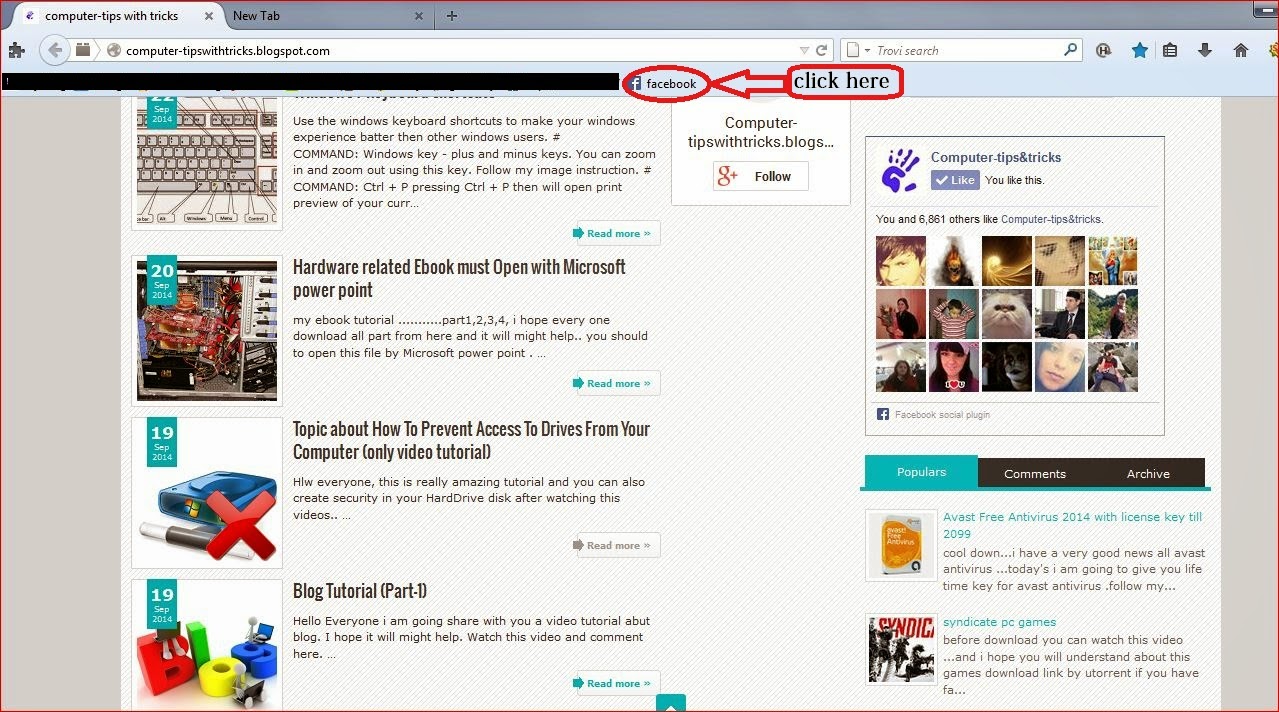
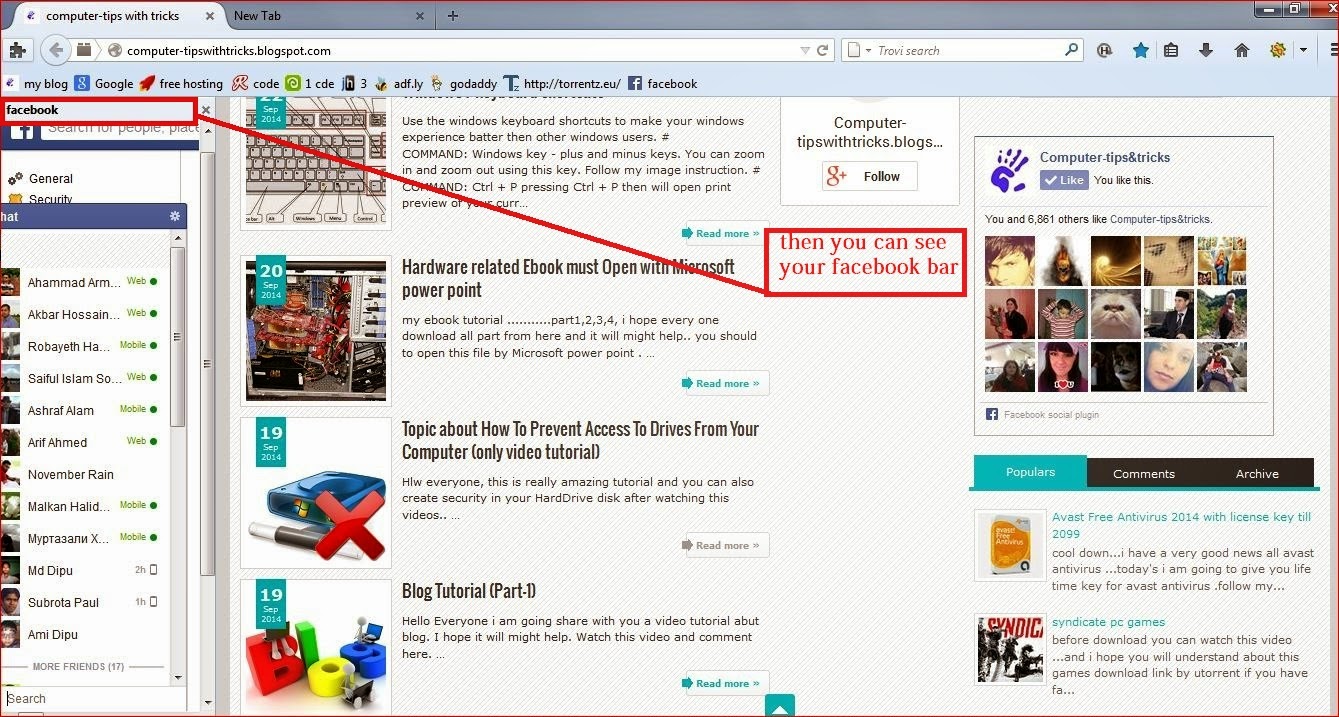
Hello everyone, how are you all? Today i am going to show you how to how keep extra facebook chat option in your  browser. So, follow my instruction..

#open your then follow the image bellow
1


2


# paste the url http://www.facebook.com/presence/popout.php in the location box


#ok now time to check our process ..how can its work follow my image

4


5


Read More..

Just a Little Too Long MS Word

Have an MS Word document that is just a bit too long? A few lines stuck on that last page? Wish you could "shrink" the document a bit and lose that last page?

Well, I suppose you could try a different font size. Or, you know, adjusting it up and down just to find the exact change that will remove the need for the unwanted last page.

But, why would you waste the time when you could get Word to do that for you?

Interested in finding out how?

Yep, I thought you might be, so heres the scoop!

The Word feature were looking for is "Shrink to Fit" and its found in the Print Preview. (File menu, Print Preview choice or use the Print Preview button located on the Standard toolbar).

Once in the Print Preview, youre looking for the Shrink to Fit button.

Click it.

Instantly, Word shrinks your documents font size to reduce the number of pages by one.

(At times, I did get an error message from the Office Assistant telling me that Word couldnt make the change. With some effort, I found that if I saved the document as is and then tried again, it would complete the shrink).

There you have it. Words version of the phrase "Shrink to Fit!"

Read More..
Powered by Blogger.