Very easy to download youtube videos audio mp3 format


you can easily download youtube videos MP3 format
So we have a video from Youtube, download video format but do not format audio. Many mega bytes audio save you a good opportunities for those who want to download format. Assume whatever tips you know.
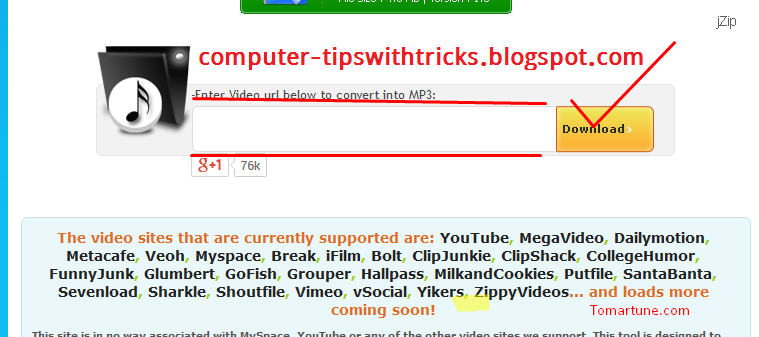
First go to this link Click to download youtube videos in mp3 format, you will see this picture shown bellow-


Then mark the red spot in the box and paste the link to your youtube video and then click download.
Then a few second you will verify the link and download will start automatically.  


Read More..

Navigation Shortcuts for MS Word The Keyboard

Picture this: Youre working on the ultimate document. I mean, its a masterpiece! Too bad the masterpiece is also a nightmare though. Its easily the longest document youve ever edited and the navigation through all those pages is just a huge headache. (Not to mention the back and forth, back and forth between the keyboard and the mouse). I bet youre looking for some help, huh?!

Well, never fear. Im here to save the day! While these shortcuts wont make your document shorter, they will help to ease the pain as you try to navigate through your work and hopefully, without the need for aspirin.

Today, lets begin with some basic keyboard shortcuts:

  • Arrow keys = moves one space or line in the arrow direction.

  • Ctrl + Left or Right arrow = moves the cursor one word left or right.

  • Home = moves the cursor to the beginning of the current line.

  • Ctrl + Home = moves the cursor to the top of the document.

  • End = moves the cursor to the end of the current line.

  • Ctrl + End = moves the cursor to the bottom of the document.

  • Page Up = moves the cursor up the length of one screen.

  • Page Down = moves the cursor down the length of one screen.

  • Ctrl + Page Up = moves the cursor to the previous page in your document.

  • Ctrl + Page Down = moves the cursor to the next page down in your document.

If youre mouse dependent, give these a try. Im sure youll find them to be a great aid in your quest to be even more efficient!

Read More..

computer fast by super software names ccleaner computer tips with tricks

computer tips with tricks
ccleaner


ccleaner  here is download link and download this software 4.43 mb only. 
                                                                                                                                                                    i have a good suggestion about beginner people for who are using computer but new user.because they dont know how to computer make fast.
so lets go with me and get this soft fast ...and how to  install and works i will show you by image.....follow my instruction                          

step 1= download this software and open it ...........then u can see like the under image.


 step=2: next ....then doing like next image


then click analyze


wait a 100% and then run cleener    done.

if you regular run cleaner ur pc  then get a best performance .


Read More..

Find and Replace with Graphics MS Word

Ever find yourself working with a graphic in an MS Word document that had to be repeated and repeated and repeated?

Did you get tired of all the graphic insertions or the continuous copy and paste routine of placing the graphic in the file multiple times?

Wouldnt it be nice to have a way to place it just once and then have Word "magically" place it everywhere else in the document for you?

Well, Im happy to report there is a way to get Word to do that and it doesnt even require any magic ability at all!

The first step to the process is to insert the graphic into the document the first time it is needed. Also, dont forget to make any needed changes to the picture properties, such as the text wrapping style, before proceeding.

After that, whenever you need to insert the same graphic again, simply enter a distinctive word or a couple of words that will indicate the graphic placement. For example, you could use "graphichere" in your document to indicate a placement point. (You obviously dont want to use a common word, as it could be a part of the document narrative and be replaced by a graphic unintentionally).

Once youre ready to place the graphic throughout the document, go back to the first one youve already inserted.

Select the graphic and copy it.

Now, start up the Find/Replace feature (Ctrl + H).

In the "Find what" field, enter in the word you used to mark the graphic placements.

In the "Replace with" field, enter this: ^c.

At this point, youre ready to begin. You can either go one at a time by using the Find Next and Replace buttons or, if youre sure you used a very distinctive word, you could simply click Replace All.

Voila. When youve completed the replacements, all your graphics will be right where you want them, with no hassle of individual insertions required!

Read More..

Restart or Continue MS Office

Heres one I thought would make a nice companion thought to last Fridays MS Office tip about ending bulleted and numbered lists.

Specifically, lets talk about breaking the numbered lists.

When you take a numbered list and break it by taking a line of it and changing it to the Normal Style, you might find that the numbering continues on below into the newly created second list.

Thats good if you wanted the numbering to continue, but what if it was supposed to truly become two separate lists and the numbering should have started over at one?

Well, there are probably lots of ways to take care of this situation, but I found my fastest fix with a simple right click.

I chose Restart Numbering from the menu and the list instantly renumbered itself.

Now, if you right click and dont see this option, whats next?

Id have to say that the next option would be to choose Bulleted and Numbering from the menu.

In this window, choose Restart numbering and click OK.

I also must say that Ive run into situations where the Restart numbering option wasnt available. So, what then?

In these cases, I found that the AutoCorrect Options button would appear as I left the Bullets and Numbering window.

When I looked here, I found Restart Numbering as a choice.

So, whatever method you use, getting Word to start the numbering over is just a couple of clicks away!

Read More..

Symbol Switcheroo MS Word

While we still have yesterdays discussion on symbols in MS Word, I thought Id add yet another idea to your ever growing list!

Today, lets talk about symbol replacement. You know, when you already have a symbol in your document, but you change your mind about it and you want to use a different one. What do you do then?

Do you delete the first symbol, go to the Insert menu, Symbol choice, choose a new symbol, click the Insert button and finally, click the Close button?

Oh, lets hope not!

All you really have to do is double click on the symbol.

Yep, you read it correctly. A quick double click on that symbol will immediately open the Symbol window so that you can choose a new one to replace the first. Youll still have to use the Insert and Close buttons, but you get to skip the deleting and menu stuff completely!

Its amazing just how much can be accomplished with a good double click, isnt it?!

Read More..

Temporary Internet Files

Tahukah anda bahawa setiap kali anda masuk ke internet, setiap file yang
anda buka akan tersimpan didalam folder windows yang bernama "temporary
internet files". Sekiranya anda memedamkan file ini, ruang cakera keras anda
dapat dijimatkan lagi. Walau bagaimanapun, jika anda cuba masuk ke halaman
yang pernah anda masuk sebelum ini, proses akan menjadi lambat kerana
browser anda terpaksa download kesemua file tersebut sekali lagi. Untuk
mempercepatkan masa anda di internet, adalah disyorkan supaya anda
membiarkan sahaja kesemua file tersebut
Read More..
Powered by Blogger.